Manage Companies
Fynd Partners allows developers and partners to manage both development and managed companies within the Companies section. This page guides you through creating test (development) companies for app building, as well as gaining access to live companies.
Development Company
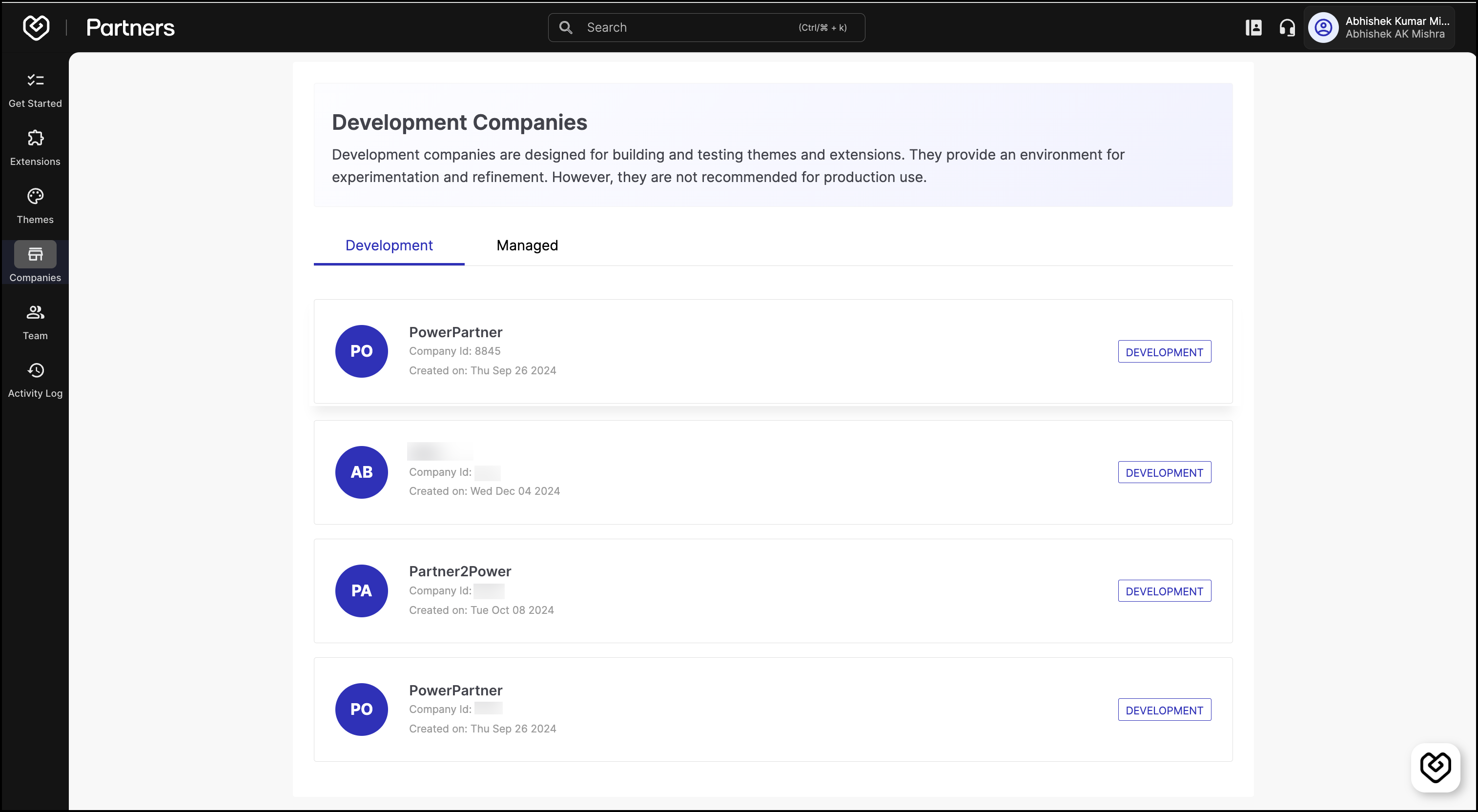
The Development tab under the Companies section in Fynd Partners is used to create and test themes and extensions in a controlled environment. It lists all development companies associated with the seller, displaying details such as the company name, company ID, and creation date. Each company on this list is labeled DEVELOPMENT, indicating that it is not intended for production use. Development companies provide a safe space for experimentation, allowing developers to refine their extensions and themes before releasing them publicly. However, since these companies are meant for testing purposes only, they should not be used for live implementations.
Steps
Follow these steps to create a development company:
- Log in to the Fynd Partners↗.
- Select a suitable organization.
- In the left pane, click Companies and go to the Development tab.
- Click Add.
- Fill in the required details.
- Click Save. Your development company is created and will appear on the development company listing page.
- Click the development company you created from the listing page. You will be redirected to that development company in Fynd Commerce.
Managed
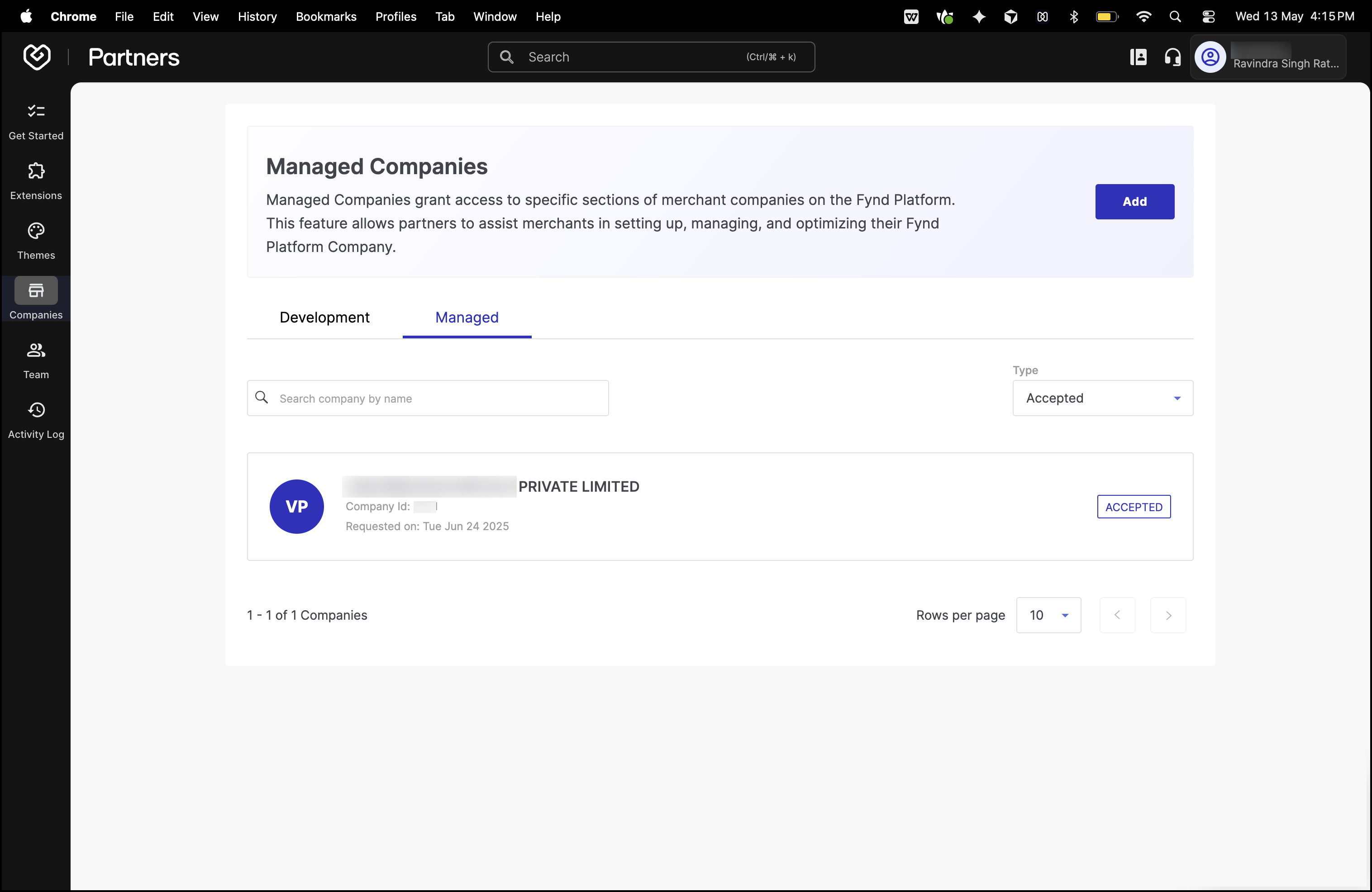
The Managed tab under the Companies section in Fynd Partners allows users to manage and request access to specific sections of merchant companies on the Fynd Platform. This feature enables partners to assist merchants in setting up, managing, and optimizing their live Fynd Platform companies.
Steps
Follow these steps to request access to a seller company:
- Log in to the Fynd Partners↗.
- Select a suitable organization.
- In the left pane, click Companies and go to the Managed tab.
- Click Add.
Only live (production) companies can be accessed via the Managed tab; development companies are not eligible for access here.
- Enter the Company ID of the live company.
- Choose the type of access—either Full Access or Custom Access.
- If Custom Access is selected, specify the required permissions from the list of available options.
- In the Sales Channel section, select a role (such as Admin, Public, Marketing Manager, or Custom).
- After making all selections, click Save to submit the request.
After you click Save, your request will be sent to the respective company's admin team on Fynd Commerce. The admins of the live company will receive a Partner Invite in their Fynd Commerce dashboard under the Team section.
For more details about how and where these requests appear, and steps to approve, refer to the Partner Invites↗.