Getting Started
This page provides all the steps needed to create your first theme. It covers the following tasks:
Prerequisites
Before you begin creating a theme, you need:
- Git↗
- Node.js v20↗ or later
- Create accounts on Fynd Console and Fynd Partners.
Steps
Install FDK CLI
FDK CLI is a command-line tool that helps developers build themes, extensions, and more.
-
Run the following command in your terminal to install FDK CLI:
npm install -g @gofynd/fdk-clinoteIf global installation fails due to restricted permissions, you can run the command with sudo or root permissions.
tipYou can run
fdk --versionto check whether FDK CLI was installed successfully.
Log in to your Fynd Partners Account
The following steps explain how to log in to your Fynd Partners account using FDK CLI:
-
Run the following command to log in to your Fynd Partners account:
fdk loginYour browser will open so you can select the account where you want to create a theme.
noteFor FDK CLI 8.0.6 or earlier, developers must enable Apps on Device in the browser to successfully log in to their Fynd Partners account.
-
Select the Fynd Partners organization through which you want to create your theme. You will see a success message when you are logged in.
noteIf you want to use a different environment (cluster) for theme development, run
fdk login --host your-partner-domainto change the active environment. This command sets the active environment to the provided cluster host.For example, if your Fynd Partners account is at partners.fynd.com, run the following command to set the active environment to the Fynd cluster:
fdk login --host partners.fynd.comtipYou can run
fdk userto verify that you are logged in.
Generate Boilerplate Code
-
Run the following command to initialise a new theme:
fdk theme new --name name-of-the-themenoteTurbo is Fynd Commerce's reference theme, and you can use it as a starting point for building a theme.
-
Select the account type for which you want to create the theme.
-
Select an account in which you want to create a theme. FDK CLI will list development or live accounts, depending on the account type you chose.
-
Select the sales channel in which you want to create your theme. FDK CLI will list the sales channels available in the account.
A folder with the theme name will be created on your desktop.
Download the Turbo Theme Boilerplate
This section is not applicable if you have already performed Generate Boilerplate Code.
If you prefer to download the Turbo theme boilerplate without using the FDK CLI, you can clone it directly from the official GitHub repository.
We have developed a boilerplate that serves as a foundation for creating the Turbo theme. Download the Turbo theme or use the following git command in your terminal:
git clone https://github.com/gofynd/Turbo.git
cd Turbo
Refer to the Boilerplate Overview to get a detailed understanding of the Turbo theme boilerplate.
Preview Theme Locally
-
Run the following command to navigate to your theme’s folder:
cd theme-name -
Run the following command to serve your theme locally:
fdk theme serveYour theme will be previewed on
localhost:5001. The port number may change depending on availability when you run thefdk theme servecommand.
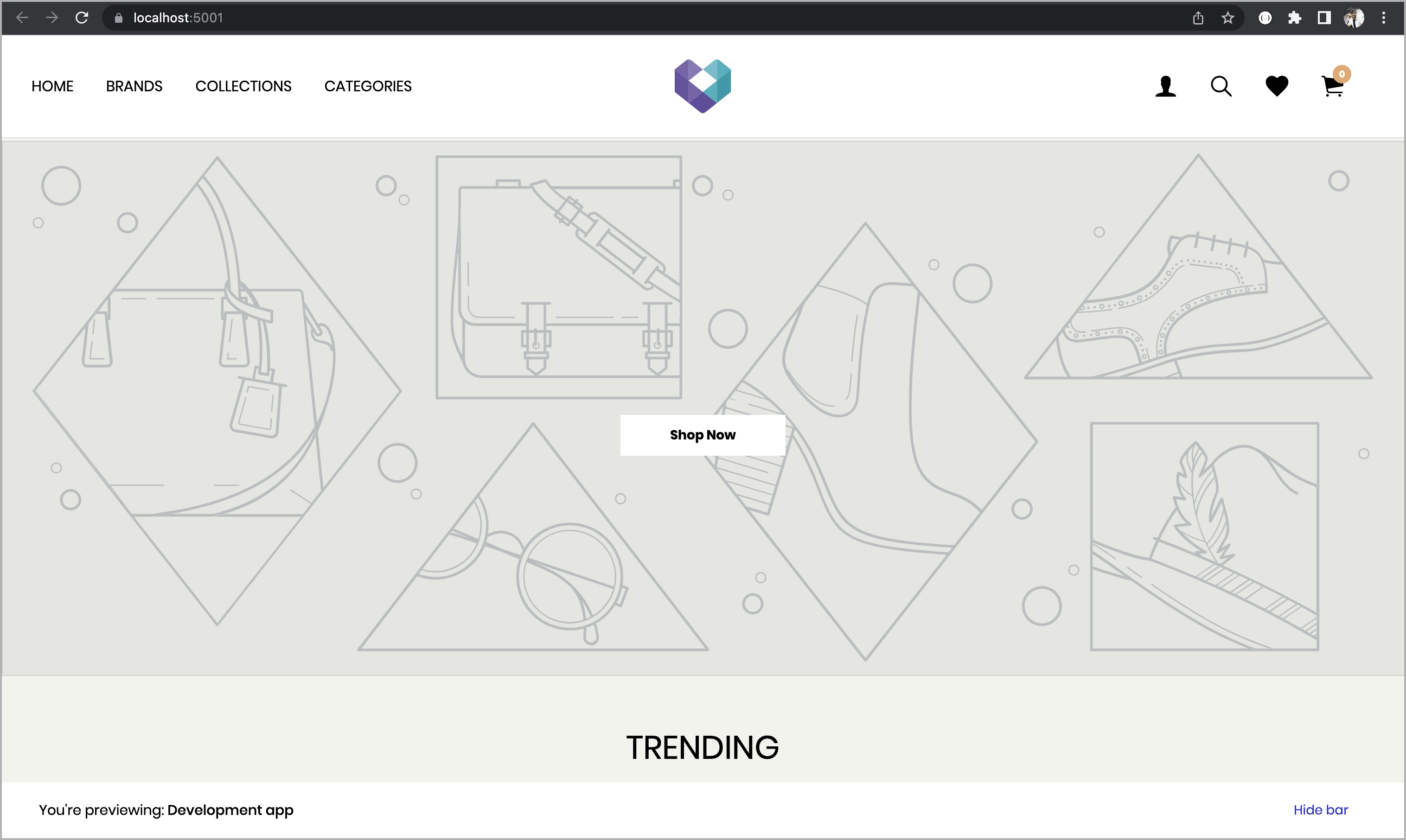
When you review the files and folders in the theme folder, you will find multiple files that define the code and assets of the predefined theme.
Preview Theme in Fynd Commerce
Follow these steps to preview the newly created theme:
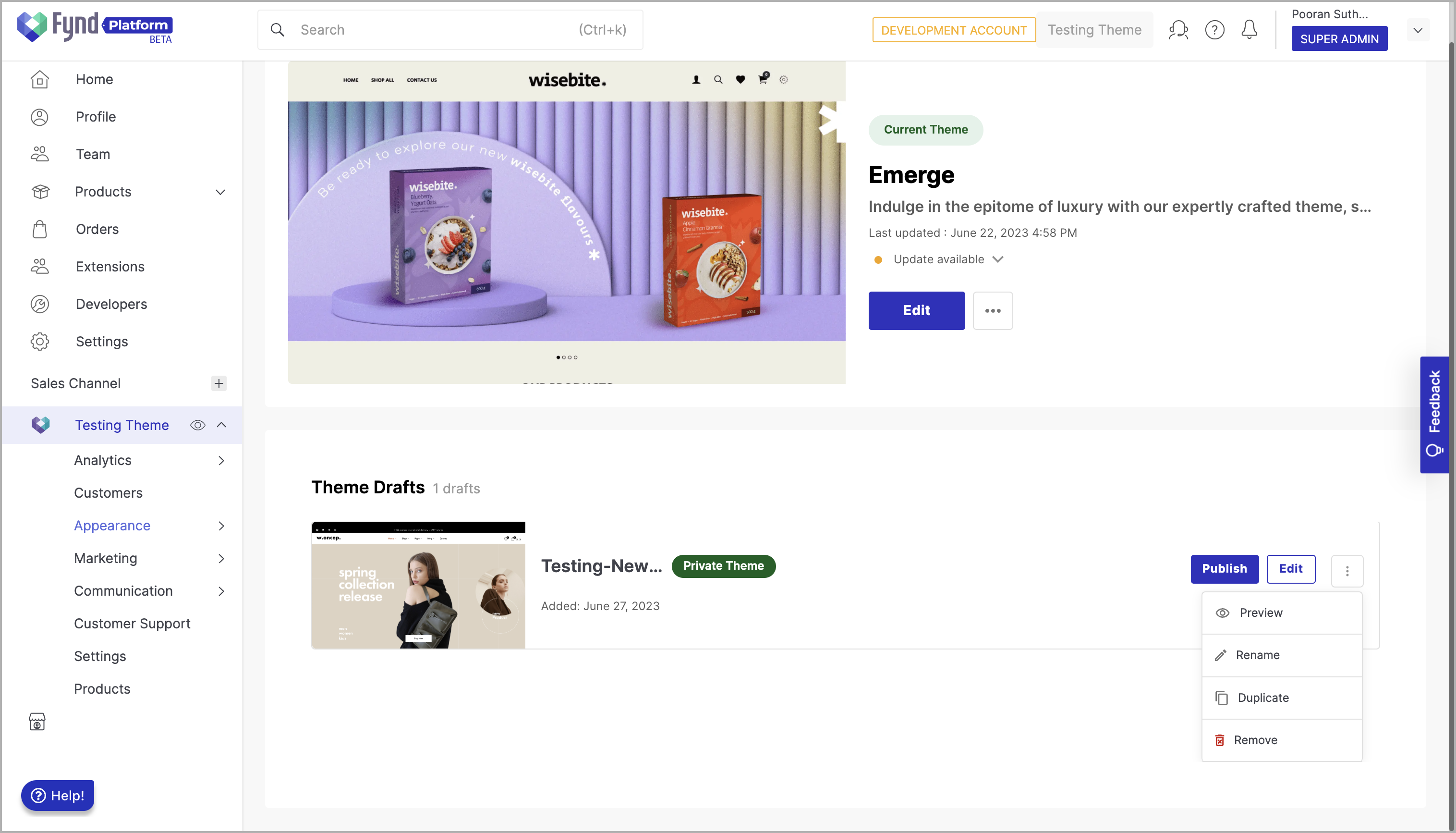
- Select the development account in Fynd Commerce.
- Navigate to sales channel → Appearance → Themes. The new theme appears under the Theme Drafts section.
- Navigate to your theme, click the three dots (
⠇), and then click Preview.
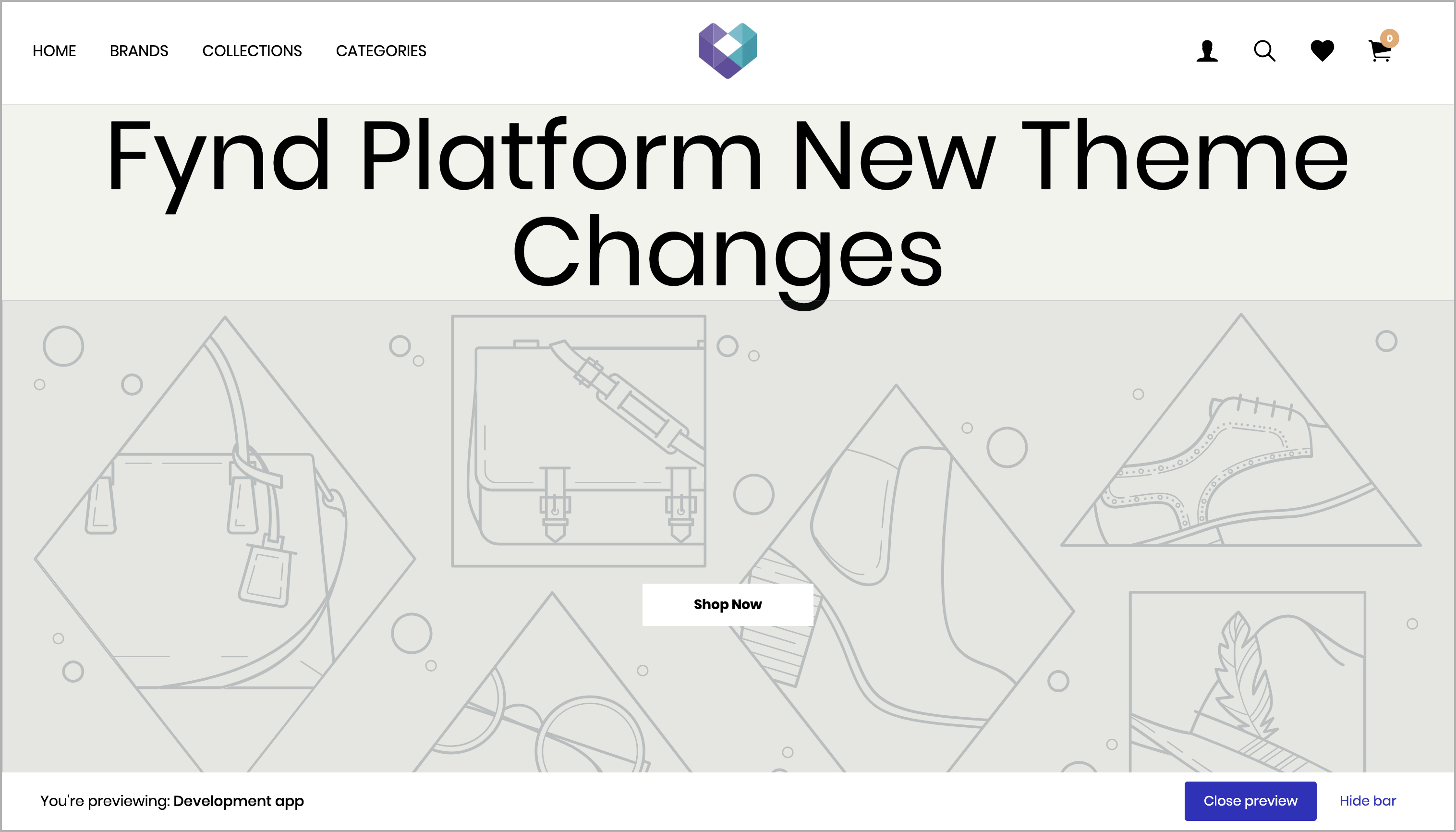
You have successfully created and previewed your first theme.
Sync Theme Changes
Ensure the changes you made to the theme work correctly in your local environment before syncing them to the application. Refer to Preview Theme Locally for instructions.
Syncing the Theme
Follow these steps to sync the theme with the application:
-
Ensure that you are inside the directory of the theme you want to sync.
-
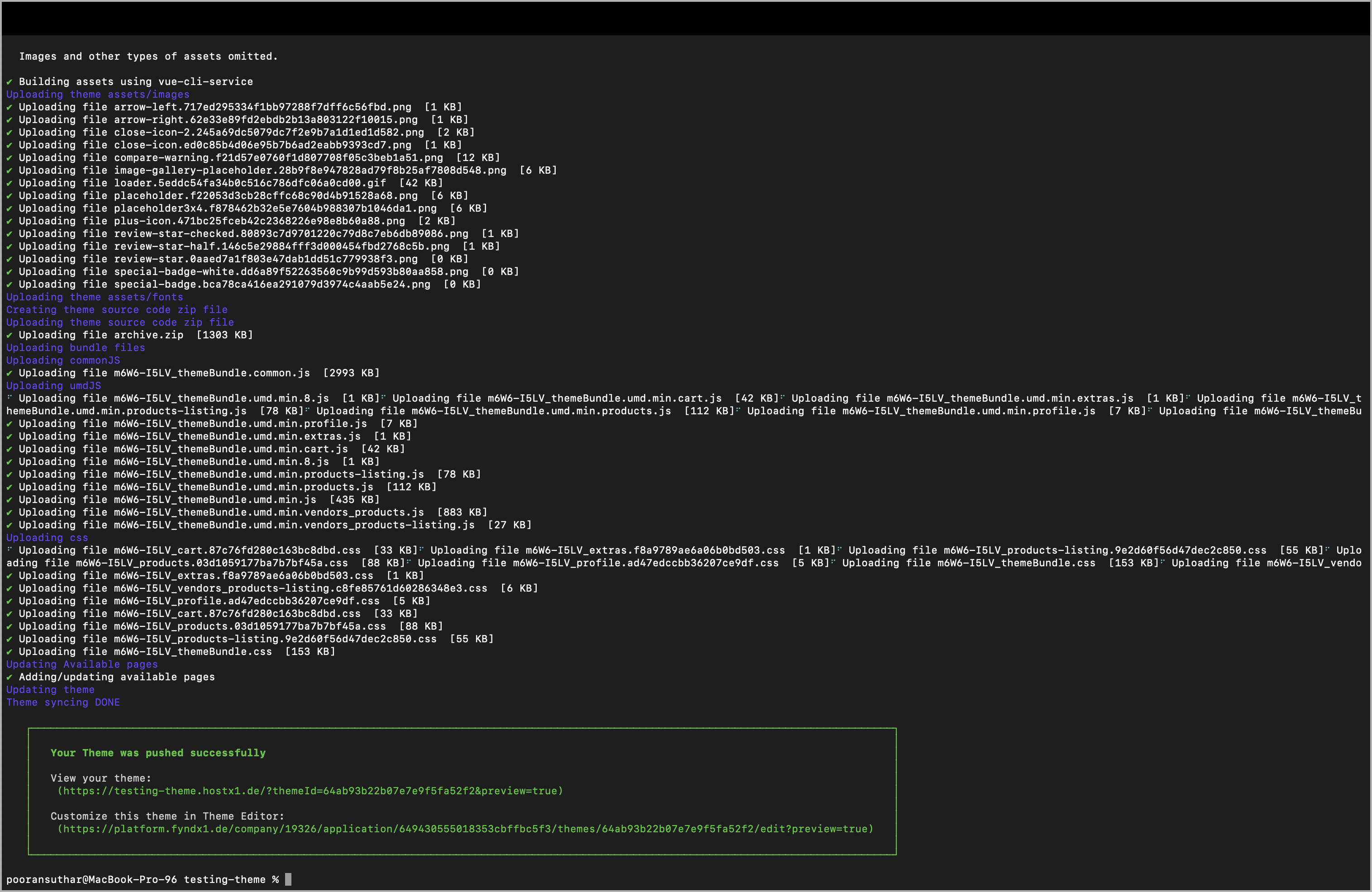
Run the following command to initiate the theme sync:
fdk theme syncIf the command fails, it indicates a potential issue with the code. Review and fix any errors before running the command again.
Theme Verification
Once the theme sync command completes, run the following command to verify the changes:
fdk theme open
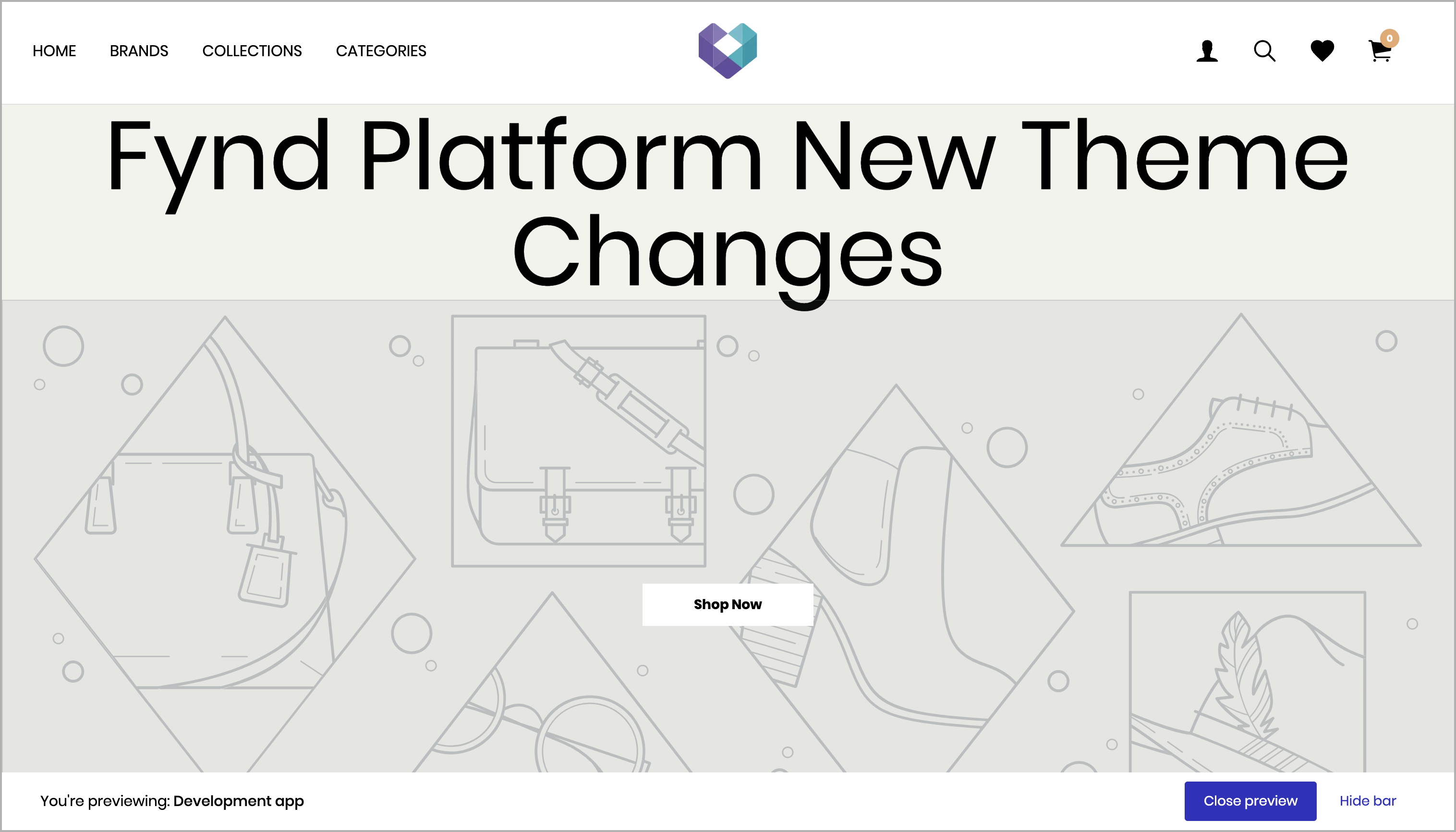
This command redirects you to the live preview page of the application, where you can view the updated theme and confirm that your changes were applied successfully.